
A shared address such as hello@ or bookings@ makes your emails easy to recognise, but replies go straight back to that same address, which may be a mailbox nobody checks. You can now send from one address and have replies go to another.
What's new:
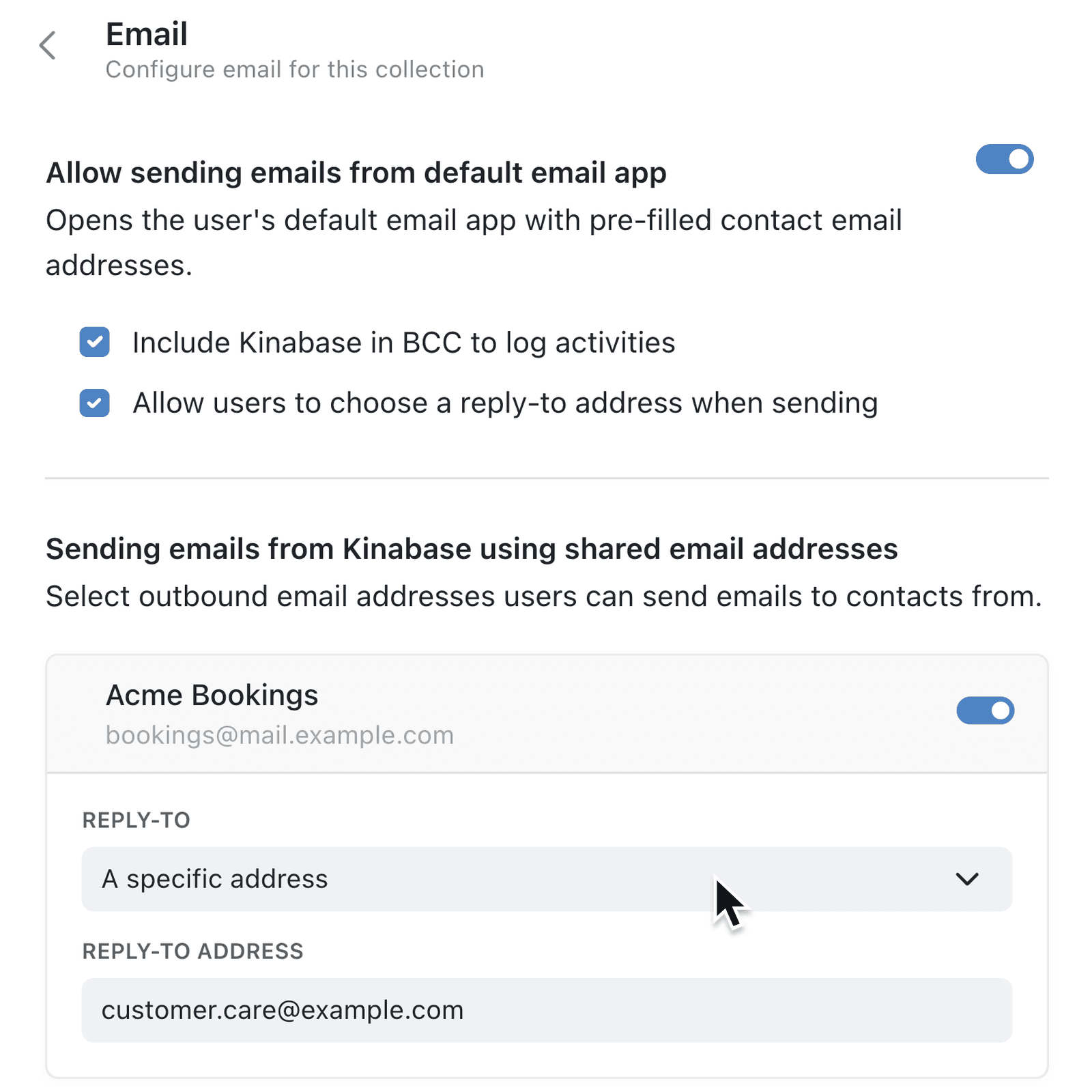
A shared email address now has a Default Reply-To Address, so replies to anything sent from it reach the inbox you choose. Each collection can change this for the addresses it sends from, to follow the sender's default, use a specific address or send with No reply-to. It can also let colleagues choose a reply-to address when they email from a record.
The Send an email and Send a calendar invite automation steps have their own Reply-to setting too, so automated confirmations and invites route replies the same way.
Why it matters:
- Route replies to the right team instead of an inbox nobody watches.
- Set it once per collection so every email sent from those records follows the same rule.
- Allow one-off exceptions by letting colleagues choose a reply-to address as they send.
- Keep automated emails consistent with a reply-to on email and calendar invite steps.
How it works:
- Go to Settings → Integrations → Outbound Emails, click the pencil (Configure) icon on a shared address and enter a Default Reply-To Address.
- Open a collection, click the options menu (⋯) and select Configure, then open Email under Features.
- Turn on each shared address the collection sends from, set its Reply-to, then click Update.
- Tick Allow users to choose a reply-to address when sending if colleagues should be able to change it for a single email.
- In an automation, open a Send an email or Send a calendar invite step and set Reply-to.
Note: The reply-to address must be on the same domain as the sending address, or its parent domain.
When to use it:
- Customer service teams sending booking confirmations from a no-reply address can have customer questions land in the support inbox.
- Property management teams can send from one company address, with each portfolio's collection routing replies to the team that looks after it.
- Training providers can send course invites from a bookings address and have questions come back to the course administrator.
Get started
Open Settings → Integrations → Outbound Emails and add a Default Reply-To Address to the shared address you send from most.
If you have questions or feedback, we would love to hear from you. Email support@kinabase.com — we're listening.