
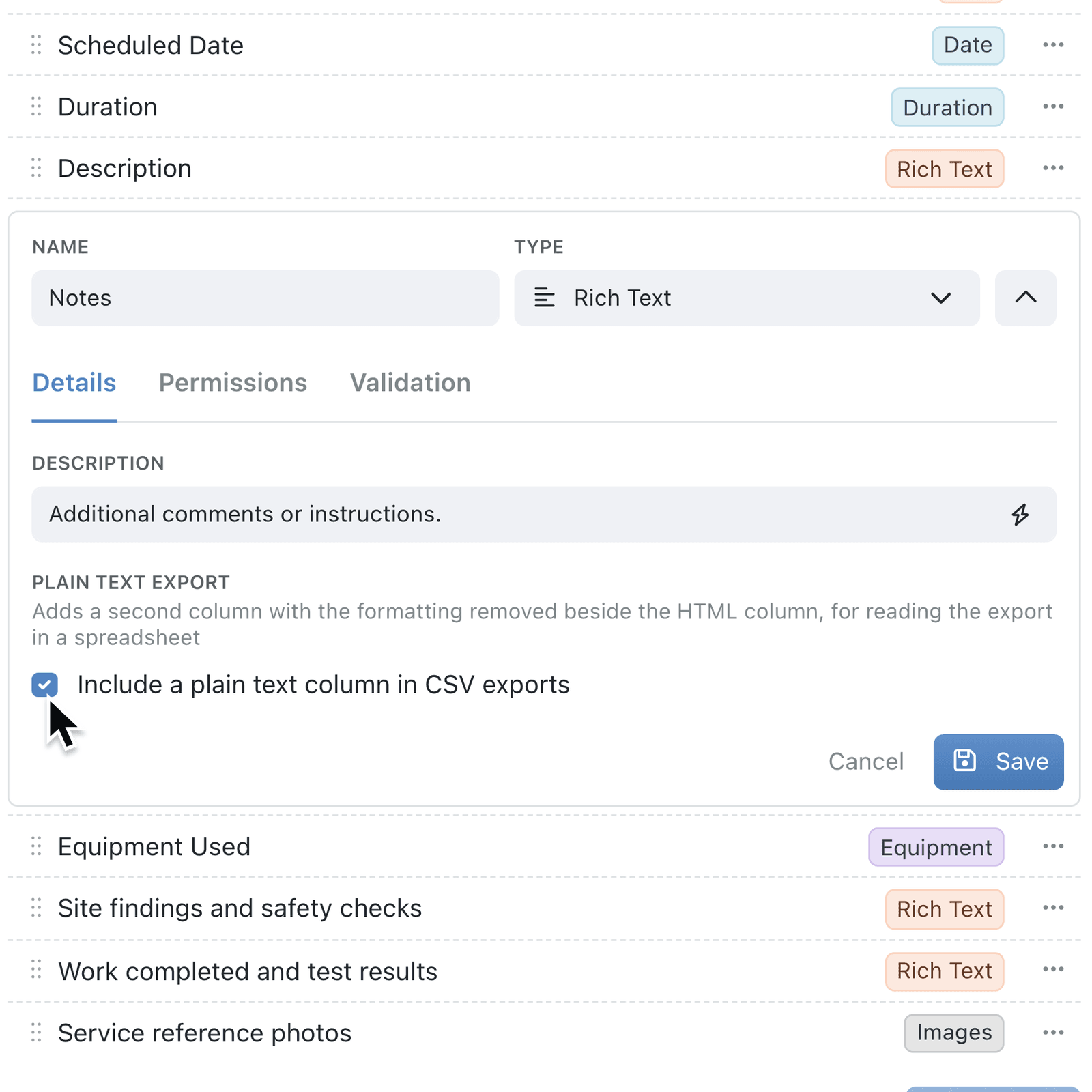
Rich text fields are ideal for formatted notes, but in a CSV export the formatting comes through as code, which makes the wording hard to read in a spreadsheet. You can now export a plain text copy alongside it.
What's new:
A Rich Text field now has a Plain Text Export option. Tick it and every CSV export that includes the field gains a second column with the same wording as plain text, with paragraphs, bullets and numbered lists laid out so they read naturally. The formatted column is still there, so you can import the file back without losing any formatting.
Export column headings are clearer too. Where a field fills more than one column, such as an address split into its city and postcode, or a lookup, each extra column is named with the field, then », then the part it holds, such as Address » City or Notes » Plain text.
Why it matters:
- Review notes in a spreadsheet without wading through formatting codes.
- Import the file back safely because the plain text column is ignored on import by default.
- See which field every column belongs to, even for addresses and lookups.
How it works:
- Open the collection, click the options menu (⋯) and select Configure.
- Under Setup, open Fields, click the ⋯ menu on a Rich Text field and select Edit.
- On the Details tab, under Plain Text Export, tick Include a plain text column in CSV exports.
- Click Save.
- Back on the collection, open the ⋯ menu and select Export (.csv). The plain text column sits beside the field's own column with the field name, such as Notes » Plain text.
Note: Field names can no longer contain », so they never clash with an export heading. Existing names that already use it are kept until you rename the field.
When to use it:
- Facilities teams can export inspection notes and read each one in a spreadsheet before a contractor review.
- Charities can share case notes with a funder as a spreadsheet anyone can read.
- Recruitment teams can export interview feedback and compare candidates side by side.
Get started
Open Configure → Fields on a collection, edit a Rich Text field and tick Include a plain text column in CSV exports.
If you have questions or feedback, we would love to hear from you. Email support@kinabase.com — we're listening.