
Linked Collection Fields
Connect records across your collections
A Linked Collection Field
Linked collection fields are how you build relationships
1. Single vs multi-record links
When you link to another collection you choose whether the field holds one record or many. Combining the choice on each side gives you the standard relationship shapes:
- One-to-one - a single-record link on both sides (one account, one primary contact).
- One-to-many - a single-record link on one side and a multi-record link on the other (one account, many projects).
- Many-to-many - a multi-record link on both sides (each project has several suppliers; each supplier serves several projects).
You don't configure the shape abstractly - you simply pick a single or multi-record link on each collection, and the relationship follows.
2. Add a linked collection field
1. Open the Fields pane
Open the collection, click the options menu (⋯) and select Configure (or right-click the collection in the sidebar and choose Configure), then under Setup click Fields.
You'll need Configure permission
Permissionfor the collection. If you're unsure, ask your System admin.The level of access — No Access, View Only, View & Edit or Not Enabled — granted through a Role for a specific area of Kinabase, such as records, tasks or configuration.
2. Name the field and choose the collection
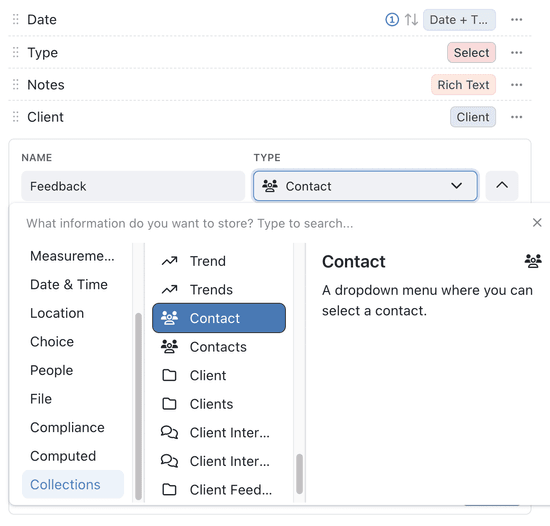
Click Add field and enter a Name (such as Primary Contact). In the Type picker, scroll to your other collections and select the one you want to link to.
3. Choose single or multiple
Select the single-record version to link one record, or the multi-record version to link several.
4. Add the field
Click Add field. The field now shows the primary field
3. Relationship verbs
Every relationship reads naturally in both directions, and you can set the words it uses on the field's Details tab:
- Outgoing Verb - how this collection describes the link (default has {label}).
- Incoming Verb - how the linked collection describes it back (default of).
For a Projects field on an Accounts collection, that might read "Account has projects" one way and "Project of Account" the other.
You can also manage relationships from the dedicated Relationships pane under Setup, where you add a link by choosing a Target Collection, turning on Multiple Records if needed, and setting the Outgoing Verb and Incoming Verb.
4. Useful options
Create linked records inline
Turn on Create linked records so users can add a new record in the linked collection right from the dropdown - "Allow users to create {plural} when adding a {singular}" - without leaving the form.
Filter the dropdown
When both collections share a field, you can narrow the records offered in the dropdown:
- Filter by common collections - show only records that share a linked collection with the current record.
- Custom Filter - apply your own conditions.
- Only allow {list} from current {collection} - restrict a Collection List Collection Listto items belonging to the current record.A subcollection nested inside a record for repeating line items — such as order items or components — shown as a table within the parent record.
What happens when a linked record is deleted? Kinabase keeps the reference in place - deleting a linked record doesn't cascade through the link. There's no deletion-behaviour setting to configure here.
5. Display and input options
Choose how linked records are displayed
Edit a linked collection field and open its Input tab. Under Display, choose the picker that best helps users identify the right record:
- Basic - show the linked record's primary field and, where configured, its secondary field.
- Thumbnail - add an image from the linked collection. If more than one image field is available, choose one under Image Field.
- Detailed - show up to four read-only values beside each option and keep them visible after a record is selected.
Detailed is available only for a single-record link when the linked collection has at least one eligible preview field. Select Detailed, then choose up to four Preview fields. Kinabase excludes the linked collection's primary and secondary fields because the picker already shows them. It also excludes file, rich text and multi-value fields.
Preview values use each field's usual formatting, with field colours shown in the search results. Kinabase only shows preview fields the current user has permission to read. Portal forms use the Basic picker instead of Detailed previews.
When users search, they can compare the previews before selecting a record with the mouse or keyboard. A record cannot link to itself when the field points back to its own collection.
QR code scanning
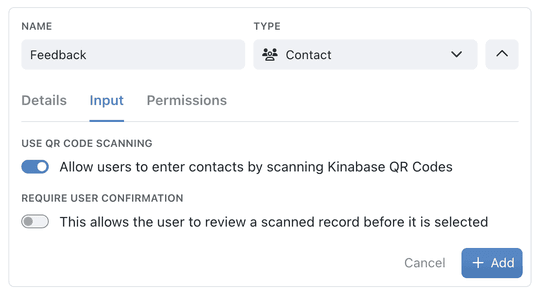
To let users populate a link by scanning a Kinabase QR code, open the Input tab and turn on Use QR Code Scanning. Turn on Require User Confirmation if you'd like a prompt before each scan is accepted. When adding a record, click the QR icon next to the field to open the camera and scan.
6. Tips
- Use a single-record link where there's genuinely one related record (one primary contact), and a multi-record link where there are many.
- Set clear relationship verbs so records read naturally from both sides.
- Turn on Create linked records to speed up data entry when related records often don't exist yet.
- Once your links are in place, add a lookup field to surface a specific value, or an aggregation field to roll up totals.
Need more help? Ask your System admin, or contact our support team via Help & Support.