
Validation and Formatting
Keep data valid, and make it easy to read at a glance
Once a field
You'll need Configure permission
Permissionfor the collectionThe level of access — No Access, View Only, View & Edit or Not Enabled — granted through a Role for a specific area of Kinabase, such as records, tasks or configuration.Collection. If you're unsure, ask your System admin. To open any field, go to Configure → Fields, click a field to edit it, then switch to the tab you need. See Configuring fields.A container for records in Kinabase, similar to a table in a spreadsheet or database, used to organise one type of data such as Projects or Contacts.
1. Validation
The Validation tab defines the rules a value must satisfy before a record
Required
Turn on Required to make the field mandatory - "Require this field to be completed". Records can't be saved until it has a value.
Update Required
Turn on Update Required to prompt users to change a field's value - "Require this field to be updated". Useful when a value should be reviewed rather than left at its default.
Unique
Set Unique to control whether values must be distinct across all records in the collection. Choose one of:
- None - no uniqueness check.
- Show warning - flags a duplicate but still lets the record be saved.
- Show error - blocks the save until the value is unique.
Require Whole Number
For numeric fields, turn on Require Whole Number to reject decimals - "Require this field to be a whole number".
Numerical Limits
For numeric fields, set a Min Value and Max Value to bound what can be entered. Each limit has its own Message shown to the user when they go outside it. Instead of a fixed figure you can use Min Formula / Max Formula to derive the limit from other fields with an Expression
Date limits
For date fields, set the earliest and latest dates allowed, again with a Message for each - for example, to stop a delivery date being set in the past.
Warnings vs errors. A warning informs the user but lets them continue; an error blocks the save. Reserve errors for data that must never be wrong, and use warnings where a nudge is enough.
2. Conditional formatting
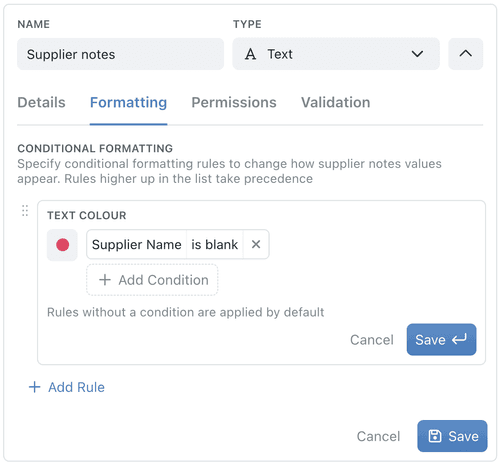
In a spreadsheet you might use conditional formatting to colour cells; in Kinabase you do the same from the Formatting tab. Colour rules give a field instant visual cues - no formulas required - so busy collections become easy to scan.
Use them to:
- Catch problems - turn a blank or invalid value red.
- Surface priority - highlight high-risk scores, overdue dates or negative balances.
- Add context - shade categories or key clients in brand colours.
1. Open the Formatting tab
Edit the field and switch to Formatting.
2. Add a rule
Click Add Rule, then set a Text Colour and pick a colour swatch.
3. Build the condition
Add one or more conditions with Add Condition, choosing a field, an operator (such as is blank, contains or is) and, where needed, a value.
4. Order the rules
Add as many rules as you need and drag to reorder them - the first matching rule wins. A rule with no condition becomes the default colour: "Rules without a condition are applied by default".
5. Save
Your collection updates instantly, and both new and existing records follow the rules.
3. Number formatting
The Formatting tab also controls how numeric values are displayed - without changing the stored figure.
Precision
Set Precision to control decimal places or significant figures. (Currency fields support decimal places only.)
Choose a large number format
Use Large Number Format to choose how figures are written:
- Grouped - thousands separators that follow each viewer’s browser locale (for example,
1,234,567in British English or1.234.567in German). This is the default. - Plain - no thousands grouping (for example,
1234567). Use this for years, reference numbers and other numeric identifiers. - Scientific - scientific notation (for example, 1.23×10⁶).
- Suffix - a compact suffix (for example, 1.23M). This option is not shown for metric units that use SI prefixes.
The example below the setting shows how 1234 will appear. Select Save when you have finished. The format flows through everywhere the field is shown - views, aggregations and Chart
Existing fields that used Comma continue to group thousands. The Field Editor now shows their setting as Grouped, and you do not need to update them.
When you edit an existing field that used Comma, Kinabase recognises the viewer’s local thousands and decimal separators. Plain values remain ungrouped but still use the viewer’s local decimal separator.
Date and time fields have a toggle to show a timezone indicator alongside the value, so colleagues in different regions read the same moment correctly.
4. Field permissions
The Permissions tab controls access to a single field, on top of the collection's overall permissions
- Read Permissions decide who can see the field.
- Write Permissions decide who can edit it.
For each, choose Everyone, restrict by role, set a Custom rule based on a colleague field, or select Nobody.
For how roles are defined across your organisation, see Assign roles and permissions.
5. Tips
- Combine a Required rule with a sensible default so records are complete without extra typing. See Configuring fields.
- Use Show warning for uniqueness where occasional duplicates are acceptable, and Show error where they're not.
- Colour rules turn a collection into a quick-read dashboard - great for spotting errors and guiding workflows.
- Restrict Write Permissions on fields that only certain roles should change, such as approval status or pricing.
Need more help? Ask your System admin, or contact our support team via Help & Support.