A step is a single action an Automation AutomationA rule that automatically runs one or more Steps, such as sending a notification or updating a record, when its Trigger conditions are met.
performs once its trigger fires. An automation can run several steps in order, so one event can add a Task TaskSomething that needs to be done, created against a record and optionally assigned to a colleague with a due date.
, send an email, and update a Record RecordAn individual entry within a Collection, like a row in a database table, representing one item or entity such as a customer or an order.
in a single pass. This guide is a reference to all twelve steps, each with a worked example. For the events that start an automation, see Triggers; for the one step with enough settings to need a guide of its own, see Making an API Call.
Automations are built under Settings → Operations → Automations. You'll need to be a System admin.
1. Adding steps
In the automation editor, under What to do, click Add step and choose a step type. Add as many as you need - they run top to bottom. Most steps let you set field values from a fixed value, an expression, or a value copied from the record that triggered the automation.
Some steps only appear in certain situations. Open a form and Copy to clipboard are available for Manual (right-click) automations only; Send an email needs outbound email configured; and a few steps depend on your plan or on an integration, as noted below.
2. The step catalogue
Creates and assigns a follow-up task, with an optional due date and one or more assignees.
Configure it: enter the task name and any instructions, select the assignees, and set an optional due date.
Example - When a support case is marked Escalated, then create a task for the on-call manager due in two hours.
Sends an in-app Notification NotificationA message from Kinabase that alerts you to events such as a task being assigned, a due date approaching, or an Automation completing, delivered in-app, by email or as a desktop notification.
to selected colleagues, with an urgency of Urgent, High, Medium or Low.
Configure it: choose the recipients, write the message, and set the urgency.
Example - When an invoice becomes Overdue, then send a High-urgency notification to the finance team.
Sends an email to chosen recipients using your organisation's outbound email settings.
Configure it: choose recipients (record contacts, colleagues, or fixed addresses), then write the subject and content. Both can include record values through expressions - type $ to reference a field, for example Your order $ORDER_ID is ready.
Example - When a booking is created, then email the customer a confirmation with their reference and date.
Kinabase has no stored email-template library and no AI email drafting - email subject and content are written using expressions. This step needs outbound email set up first; see Outbound Emails.
Sends a calendar invitation to chosen recipients, based on a date or Date Range field on the record.
Configure it: choose the recipients, set the event title and description (expressions supported), and pick the field that supplies the date and time.
Example - When a service is scheduled, then send the assigned engineer a calendar invite for the visit date.
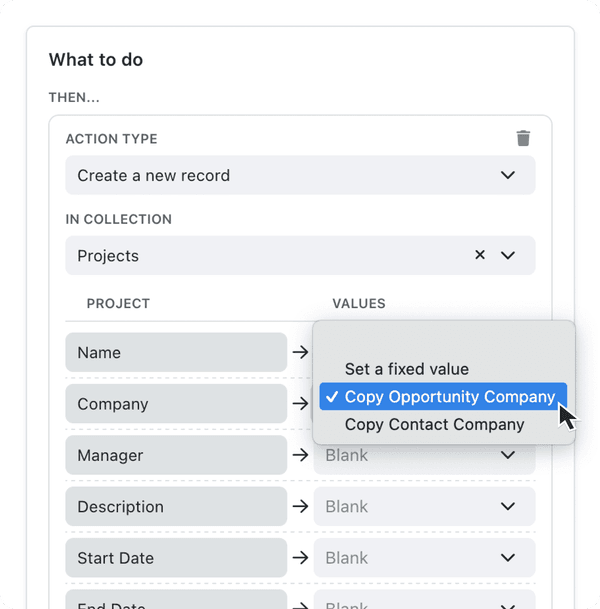
Adds a record in another collection - including a collection list - and fills its fields from the triggering context.
Configure it: in In Collection, choose the target (collection lists show their parent, e.g. Customer - Orders). Map each field to a fixed value, an expression, or a value copied from the triggering record. When targeting a collection list, set the (Parent) field with Link to current record, Copy from context, or a fixed value. Kinabase blocks saving until required parent links are valid.
Example - When a project is Approved, then create a kick-off record in its Milestones list, linked to the project.
Find and reuse an existing record
Turn on Use an existing Record if one matches, otherwise create a new one, where Record is the target collection's singular name, such as Contact. The Find existing Record panel lets you decide how a match is found and what happens to it:
- Under Check for Records where, add filters against fields on the target collection. Comparison values can come from form fields, the record that triggered the automation, or records used by earlier steps. With no filters, every existing record in the collection is a candidate.
- Choose a number, duration, or date and time field under Selection Criteria. Under Mode, choose Min or Max for number and duration fields, or Earliest or Latest for date and time fields. Kinabase uses this to choose one record when several match.
- Under If a matching Record is found, select Keep its existing values or Update it with the below values.
- When updating, use What to do with empty form values to choose Ignore them - assigning them to a field does nothing or Use them - assigning them to a field sets it to blank.
- Turn on Use the matched or newly created record for subsequent steps if later steps should act on the result.
This option is not available for create steps inside multi-row input action panels. If an updated match has related records copied onto it, the copies are added alongside its existing related records rather than replacing them.
Example - When a lead form is submitted, then look for a Contact with the submitted email address. Update the matching Contact, or create a new one if there is no match, then use that Contact in later steps.
Read our Product Update for more.
You can copy values straight from a parent record when populating fields. Read our Product Update for more.
If this step moves on the date a Scheduled trigger reads, Kinabase keeps the automation to one run a day. See When a step writes the due date.
Update the current record
Changes fields on the same record that triggered the automation.
Configure it: select the fields to update and set each new value as a fixed value, an expression, or a copied value.
Example - When a quote is Accepted, then set Status to Won and Won Date to today.
Where a Rating field has text labels, an update step can copy the label text (e.g. "High") into a text field rather than the raw number. Read our Product Update for more.
If this step moves on the date a Scheduled trigger reads, Kinabase keeps the automation to one run a day. See When a step writes the due date.
Opens a form to collect input before the remaining steps run. This is the step every form is built on.
Configure it: build the form's pages and fields in the form editor. See Creating Forms.
Example - When a user runs Allocate Stock on an inventory record, then open a form asking for the quantity, before the later steps update stock levels.
Open a form is available for Manual (right-click) automations only.
Creates a PDF from a document template using the record's data, and optionally saves or emails it.
Configure it: select the template and set an optional filename (use $ expressions for a dynamic name, e.g. $TITLE-$COMPANY). In Save file to, choose Don't save, Record folder, or a Specific field. You can also add email recipients to send the PDF on.
Example - When a billing record reaches Ready to Send, then generate an invoice PDF and email it to the customer.
This step needs Document Templates. If you can't see it, contact our support team to enable it for your organisation. See Document Templates.
Create in accounting system
Creates a contact or item in Xero or QuickBooks and links it back to the Kinabase record. If the record is already linked, the step is skipped.
Configure it: connect your accounting system and set up the synced fields on the collection first, then add the step and review the Preview panel, which shows exactly which fields will sync.
Example - When a new supplier is created, then create a matching contact in Xero, ready for invoicing.
Available on the Max plan with an active accounting integration; the step only appears once the collection has accounting fields configured. Read our Product Update for more.
Copies text - built from record values using expressions - to the user's clipboard.
Configure it: write the text to copy, referencing fields with $ expressions.
Example - When a user runs Copy Address Block on a customer, then copy their full formatted address ready to paste elsewhere.
Copy to clipboard is available for Manual (right-click) automations only.
Sends a request to an external system so it can react to what happened in Kinabase.
Configure it: set the Method (GET, POST, PUT, PATCH, DELETE), the URL, any Headers, and the Content Type. For a JSON body, add a row for each top-level key, typed Text, Number, True / False, or Raw JSON. Under Response Type, capture values from the reply - captured values are available to later steps as $RESPONSE: expressions.
Example - When a new order is created, then POST the order details to your fulfilment platform, and use the returned tracking ID in a later step.
Available on the Max plan. For the full configuration - methods, headers, request bodies and reading the response - see Making an API Call, and The Kinabase API for API access itself.
Invites, grants, or revokes Portal PortalA secure, branded web interface, separate from the main app, that shares a filtered view of your Kinabase data with internal colleagues or external collaborators.
access for external portal user records. Invite and grant actions can also set a time when access expires.
Configure it: confirm the collection is the user collection for an external portal, then select the Portal and an Action:
- Send invite (grant access + send email) grants access and sends the invitation.
- Grant access (without invitation email) grants access without sending an email.
- Revoke access removes access and does not use an expiry.
For an invite or grant action, set Access expiry to Never expires, Expires after a period, or Expires at a specific date & time. A period can use hours, days, weeks, or months from the time the automation runs; months must use a whole number. A specific date and time can be fixed or calculated from an expression, but it must be in the future when the step runs.
Specific dates must be within 100 years. Periods are limited to 876,000 hours, 36,500 days, 5,200 weeks, or 1,200 months.
Example - When a client record moves to Active, then send a portal invite and grant access for the next 30 days.
Needs an eligible external portal. If you can't see this, contact our support team to enable Portals for your organisation. See Managing Portal Users for access and expiry guidance.
3. Working across linked records
By default every step acts on the record that triggered the automation. With record context switching you can make a step act on a linked record instead - and chain switches to move across collections.
To switch, edit a step and click the collection-name button in its header, then Switch record. Choose a linked record (setting Selection Criteria such as Earliest or Latest where several exist) or return to an earlier record in the chain. When setting field values, you can copy from any record in the chain, from form inputs, or from an earlier API response - see Making an API Call.
Example - a purchase order is approved → switch to the linked supplier to update their order count → switch back to send a confirmation email referencing both.
Read our Product Update for more.
4. Branching with conditions
Steps don't have to run unconditionally. Using If, Otherwise if, Otherwise and End, you can run different steps depending on a record's values - for example, send one email if an order is over £1,000 and another otherwise. Add a condition from the What to do section, then place the relevant steps inside each branch.
Need more help? Ask your System admin, or contact our support team via Help & Support.
